Move a project across organizations
Feature availability
This feature requires the PL_PROJECT_MOVEMENT_ENABLED feature flag. Contact Harness support to enable it.
This document provides a step-by-step guide to migrate projects from one organization to another, including prerequisites, permissions, and detailed migration procedures.
Prerequisites
- Move Project permission on the source project
- Create Project permission in the destination organization
Steps to move a project
Step 1: Navigate and access the move option
-
Navigate to Projects at account or organization level
-
Click the ⋮ icon next to the project you want to move
-
Select Move Project
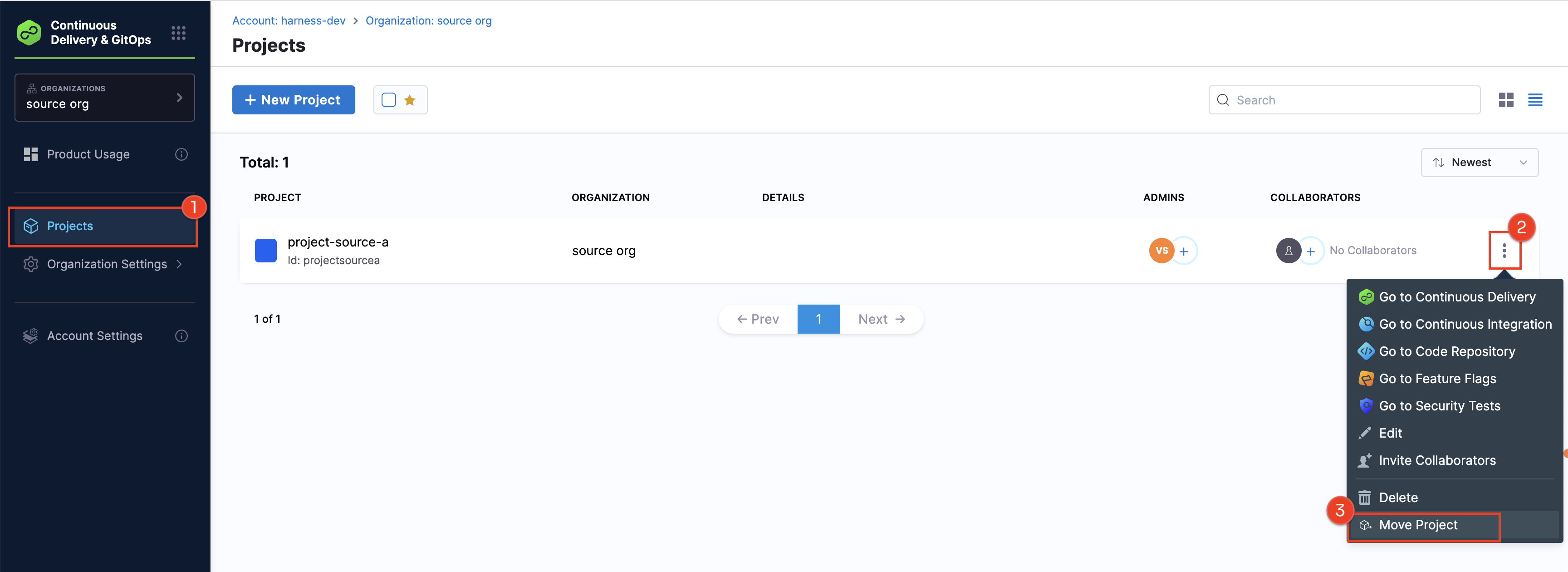
Step 2: Select destination organization
- In the Move Project modal, review the warning about potential impacts
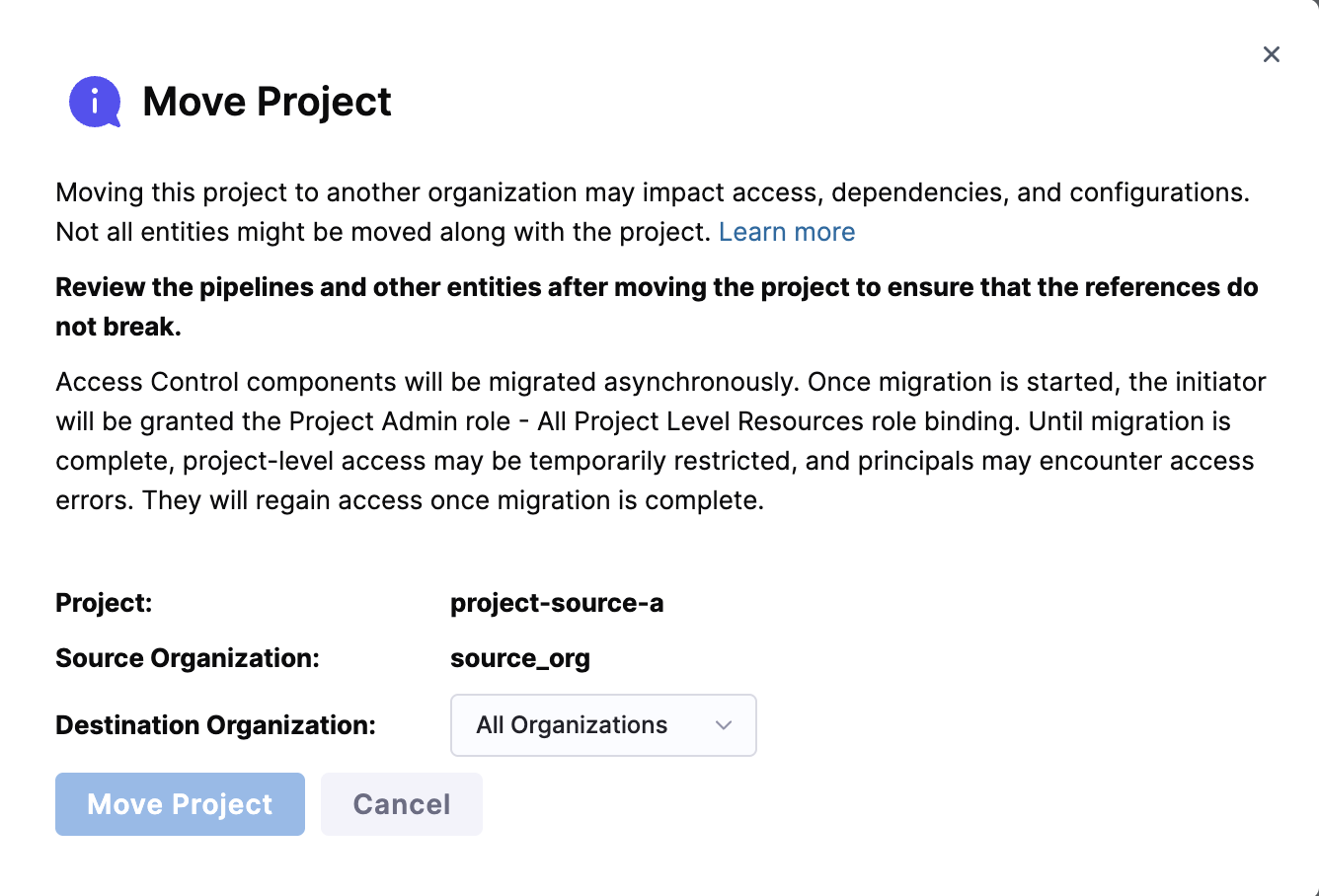
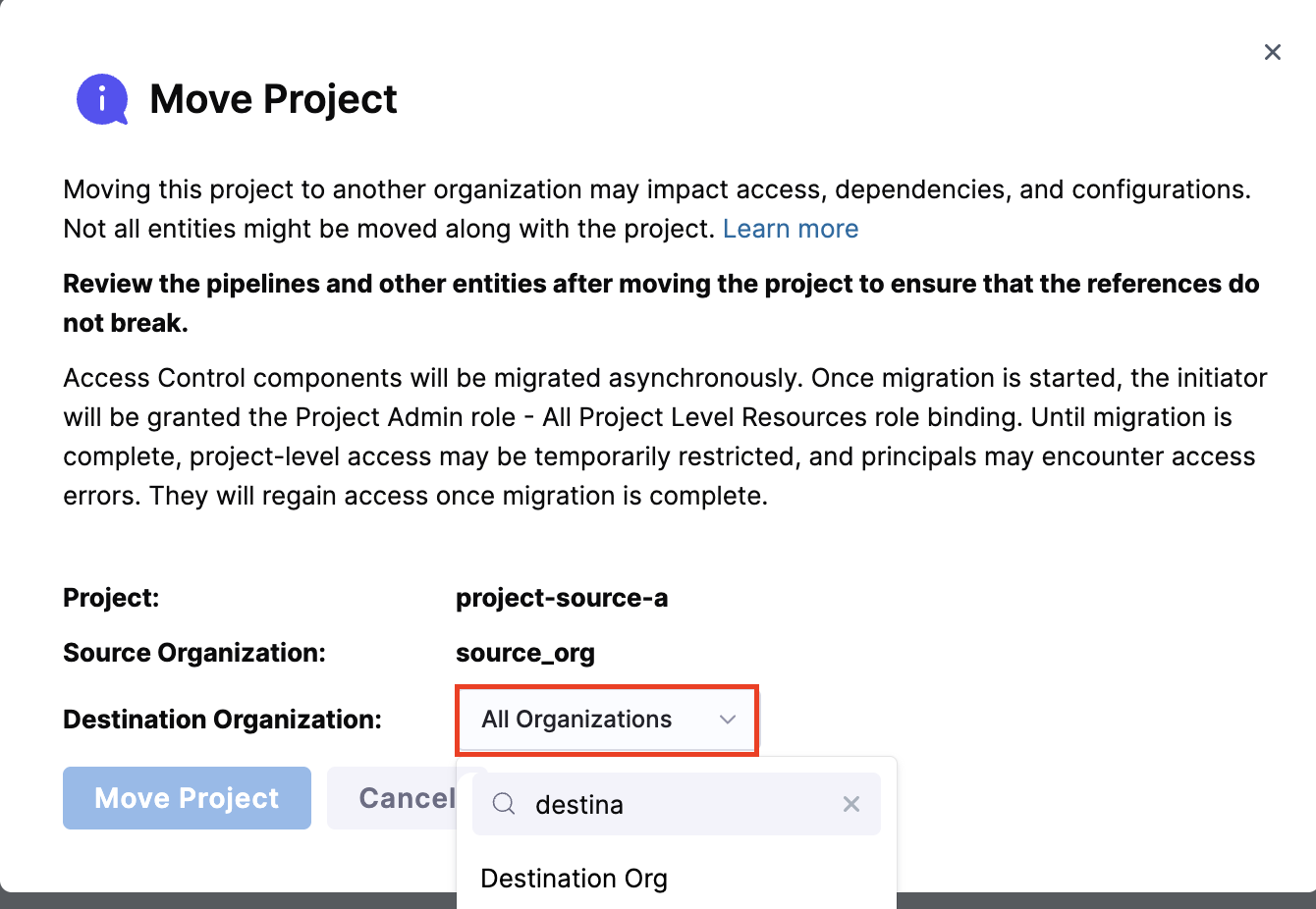
- Select the destination organization from the dropdown where you want to move the selected project. Only organizations where you have Create Project permission (
core_project_create) are listed in the dropdown.
- Click Move Project to start the move process
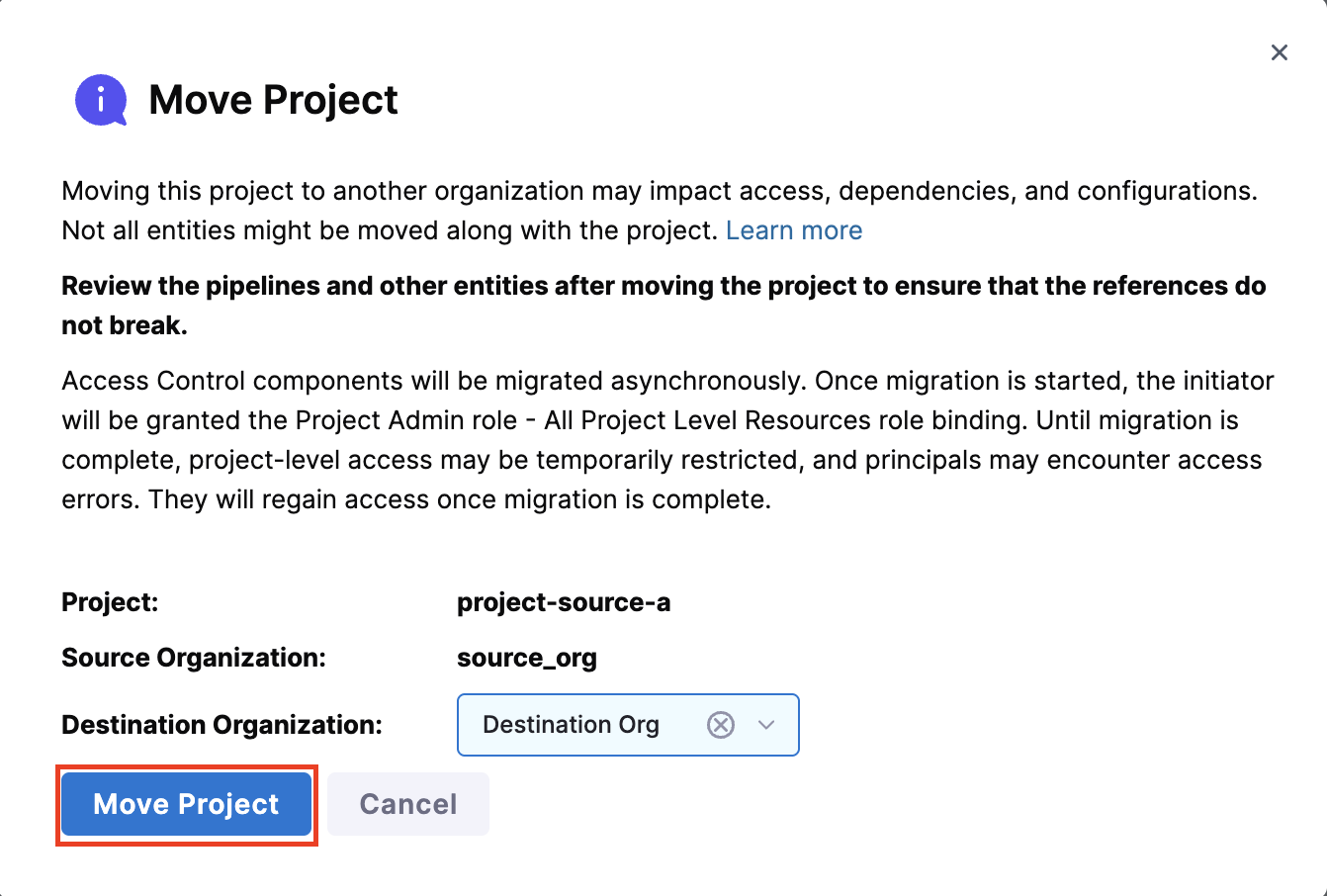
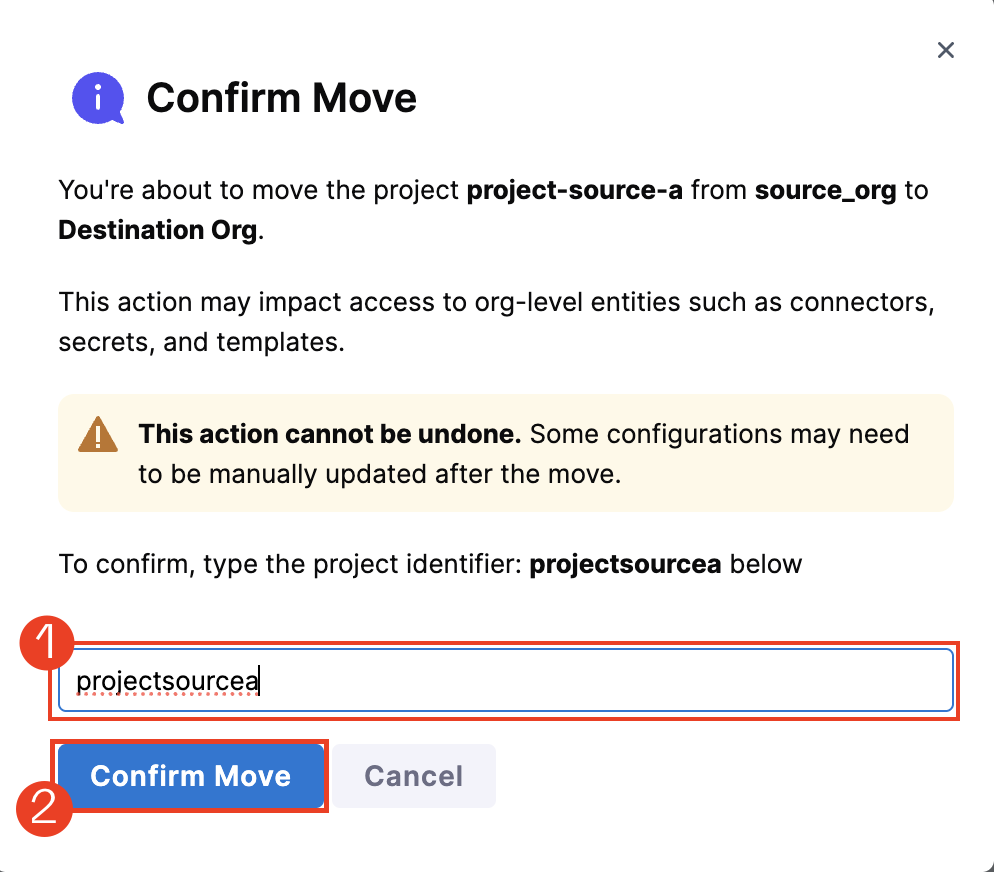
Step 3: Confirm Move
-
Review the confirmation dialog showing potential impacts. Type the Project name to confirm
-
Click Confirm Move
Once the move completes, you'll be redirected to the project in its new organization. Follow the post-move remediation guide to complete the movement.